

Appearance
Terminal quickstart
Open your Kubernetes cluster, check its health, and inspect a Pod.
Install and launch
On macOS or Linux, open a terminal at least 80 columns wide and 16 rows tall. Install Plous with Homebrew, then launch it.
sh
brew install simjay/tap/plous
plous
See other installation methods.
Start with Current Workspace
Check the context in the header. Plous opens the current context from your kubeconfig.
- Wrong cluster? Type
:Kand press Enter to choose another context in Plous. - Missing cluster? Open Settings → Choose Kubeconfig, or see connection troubleshooting.
Inspect your first workload
Check Needs Attention in Overview for reported warnings. To inspect a Pod:
- Open Explore. Press
22. - List Pods. Type
:podsand press Enter. Usento choose a namespace. - Open a Pod. Select it and press Enter.
- Read the logs. Press
l. Useoto choose another container, or Esc to return to the Pod.
Learn the basic controls
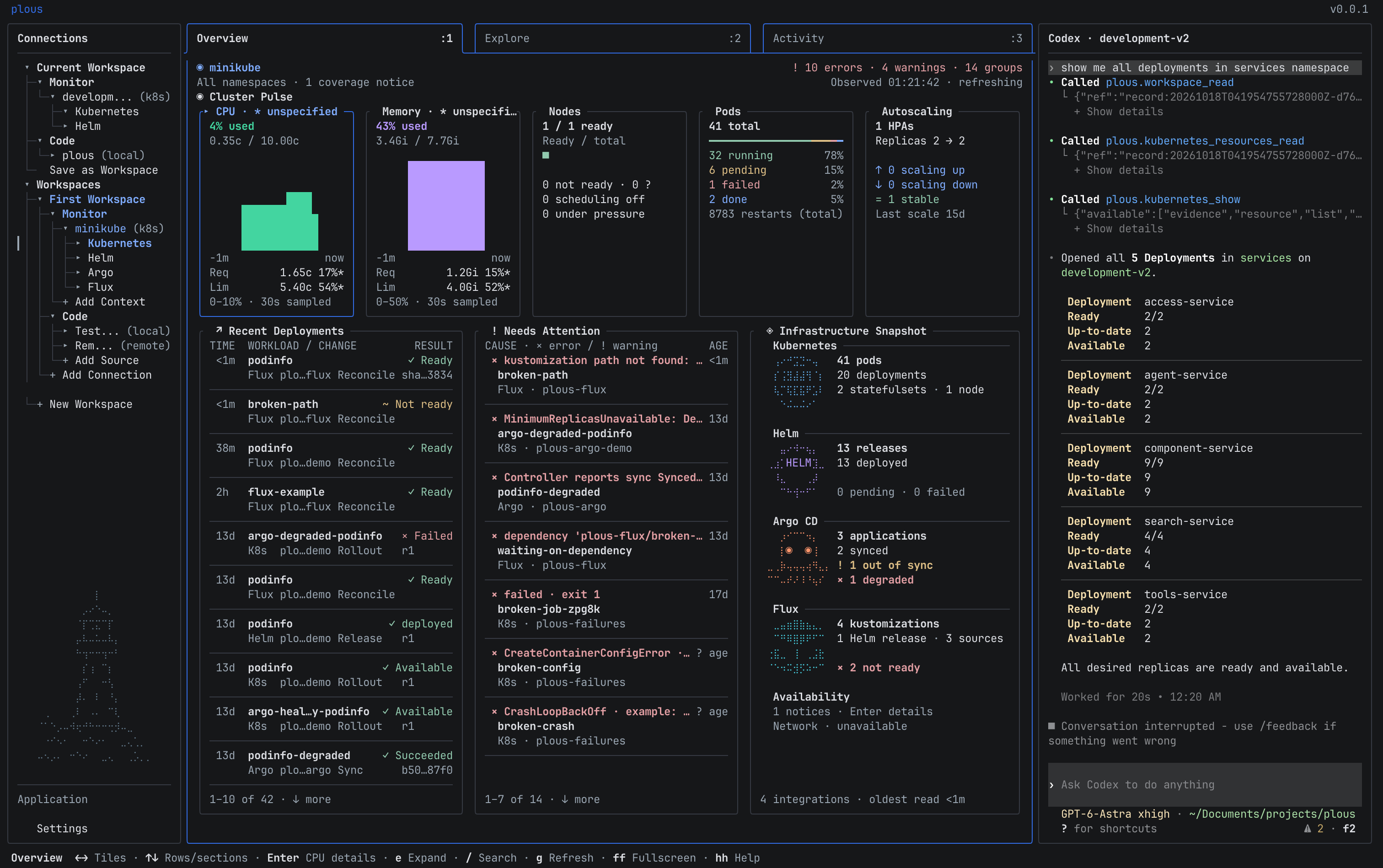
Use Alt+Right to move to the next visible panel and Alt+Left to move back.
Choose a workspace or resource type.
Browse resources and open details.
Chat with the selected agent.
| Key | Action |
|---|---|
| Up / Down, Enter | Select and open an item |
/ | Search the current panel |
| Esc | Close the current search, input, or detail view |
hh | Open Help while navigating |
ff | Expand or restore the main panel |
Use 11 for Overview, 22 for Explore, and 33 for Activity. See the keymap for all controls.
Leave and return
Type :quit and press Enter. Plous saves your settings and conversations.
Next steps
Continue with Explore clusters or set up the assistant inside Plous.